AS400 Placing an Order
To place an order please use the following steps:
- Step 1
- From the Phone Room Main Menu (MTB20)
- type in 19 on the command line and press ENTER(CTRL). (option 19 should be for the Sales Order Entry screen)
- Step 2
- You will receive a prompt to enter your Agent Initials
- Enter your initials
- Press ctrl.
Your name or ID should come up next to your initials.
- Press command 20 (Shift f8)
- Step 3
- Enter the consumer name, customer number (if needed see AS400 Account Numbers for customer numbers), telephone, and zip code. After this information is entered, hit command 1.
- Step 4a (If you have an item number if no item number see step 4b)
- In the order details screen
- Enter the MFG code (025 for Spectrum)
- Enter the item number
- press Tab and then enter the quantity
- press enter (ctrl)
- Step 4b (skip this step unless item number is unknown)
- In the order details screen
- Enter the MFG code (025 for Spectrum)
- Enter the Qty
- Enter the model number
- press Command 16.
- From the Model/Part Lookup Screen
- First look to see if there are model notes. If there are notes for this model there will be a message above the parts list (Rev.Image: Has Notes) Press cmd 2 to view notes and cmd 7 when finished. Always read notes if available
- Find the part from the parts list and put an “X” next to the part to be ordered.
- Hit enter
Please Note (step 4a&b): If the item (model or part) is not available, the bottom of the screen will say “Specified Item has no stock. Press Cmd 4 for Subs). Command 4 will pull up the substitutes.
- Put an “X” next to the substitute. Hit enter.
- If there are no substitutes available (not just out of stock), the CSR will not be able to place the order.
- Step 5
- In the order details screen (07026)
- select the price of the part by placing an X under the "Sel" column
- Hit Enter (CTRL)
- IF the item has notes there will be an asterisk symbol under the "N" column. To view these notes put an X in this column and press Enter (CTRL. After viewing the notes press Cmd 7 to return.
If you are changing the price on the item:
- Enter new price in the “Price" column and type FX in the "Typ” column
- Make sure if you change the price you do not put an x in the "Sel" column or you will receive an error
- Press Enter (Ctrl)
- If qty and pricing are correct press Command 20 (F8) to commit the part to the order
- Step 6
- If the consumer wants additional items please add items (repeating steps 4-5)
- When finished entering the order press Command 3 (this will allow you to review the order)
- It is recommended to review every order
- If the order is correct press Command 18 (f6)
- Step 7
- In the Order Completion Screen
- Enter a payment method
If any changes need to be made see the following:
- 0 (No Charge Orders)this will be the default when entering a No Charge order.
- V(Credit Card)this is the default for any charged order
- Q (Quotation -consumer will pay by check or money order) For information on quotes see AS400 Quote
- Press tab to go to the next field
Shipping Options
- 1 (Overnight)
- 2 (Second Day)
- 3 (Ground)
- M (Mail)
- 9 (See Notes) This option is used if there are special instructions
- Press Tab
Tax Area
- The state will already be filled in because the zip code was entered in the beginning of the order. If the zip code was not entered correctly put the state abbreviation in this field followed by 2 zeros
- Hit Enter (This will bring up the rest of the Order Completion 1 screen which includes: shipping and handling charges, credit card information and messages).
- Step 8
- Enter shipping and handling charges (if consumer is paying)
- hit field exit (Enter)
- Press Enter (Ctrl)
Please Note: If this is a No Charge Order you will not be able to enter a shipping amount it will automatically skip this field
- Step 9
- Enter the consumer First and Last Name
- Purchase Order (Last Name of Consumer)
- Credit Card Number and Expiration Date(If consumer is paying by CC)
- If you need to enter any special instructions type the information on the message line. In the PIB field enter the letter "P" (Pick Ticket), "I" (Invoice), or "B" (Both).
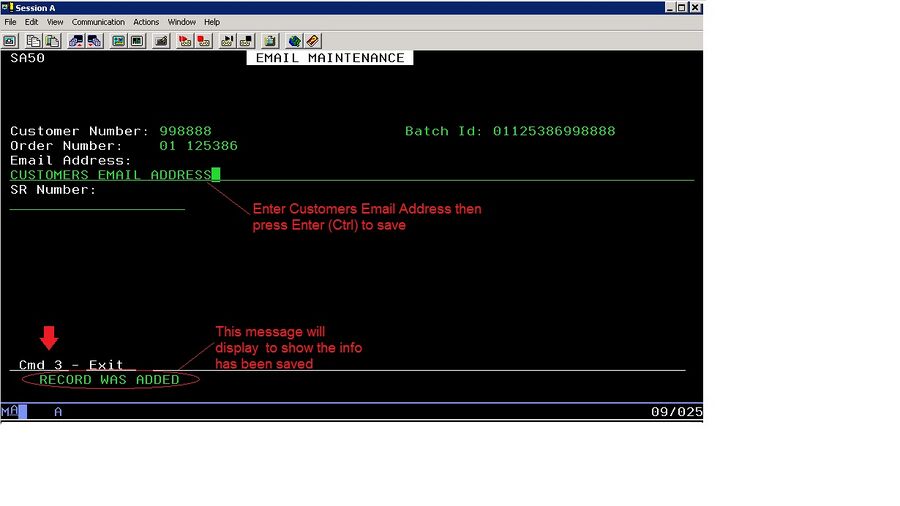
- Step 10 (If consumer does not provide email go to Step 11)
- If the consumer had provided an email address
- Press command 15 (shift f3)
- Type in email address
- Press Enter (Ctrl)
This will send the consumer an email notification when the order ships Press Command 3 to return
- Step 11
- Enter shipping to address for consumer
- Press Enter (Ctrl)This will fill in the billing address for the consumer
If this is a No Charge order the Spectrum Brands Information will show as the billing address
- The phone number will already be filled in. It is important to try to get a phone number in case there is a problem with the order
- Step 12
If you would like to enter notes into the order
- Press Command 11.
- Input the notes, then press enter (Ctrl).
- Press Command 7 to return to the Order Completion 2 screen.
- Step 13
- If Everything is correct on the order
- Change the "N"to "Y" saying it is OK to release the order
- Press Command 20 to finish the order.
Example
Step 1

Step 2

Step3

Step 4A (consumer has item number)

Step 4B (Search by Model Number)If you have followed step 4a and have item number see step 5

Step 5

Price Change

Step 6

Step 7

Steps 8-9

Step 10 (If consumer has an Email)
 ]]
]]

Step 11 & 13 (Please see step 12 before committing this order)

Step 12 (Optional if notes are Needed)

Command 20 will commit the order
